Installing ARDIS® OPTIMIZER
STEP 1: Before installation
- Take note that this procedure is only applicable for OPTIMIZER, not for any other ARDIS® application.
- Check if your PC and OS match the system requirements.
STEP 2: Install CodeMeter
- Download the latest installer file of the CodeMeter-software from the download page on our website.
- Some long-standing customers work with Safenet Sentinel, which is an alternative software protection & licensing system.

- Run the installer and follow the instructions in the wizard.
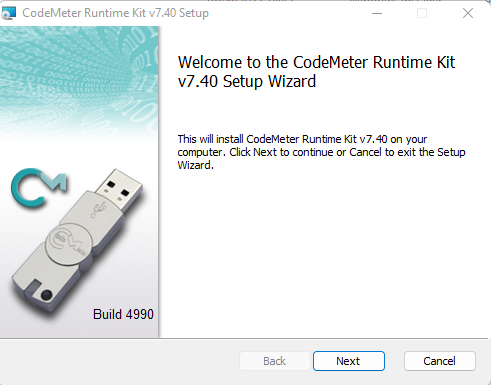
Click Next.
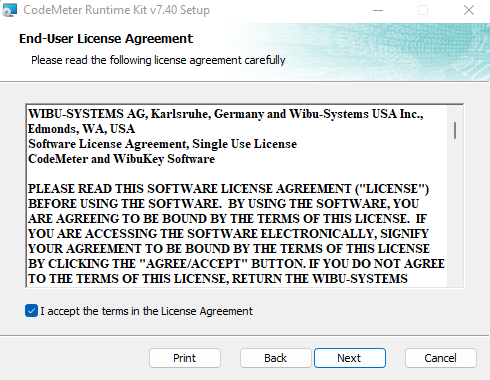
Accept license terms and click next.
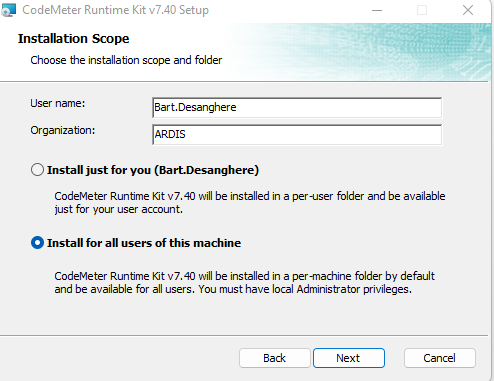
- Choose user name and organisation.
- Select the installation scope. If the user shares the PC with other users, and these users must not be able to work with ARDIS® OPTIMIZER, then select 'Install just for you'. Otherwise select 'Install for all users of this machine'.
- Click next.
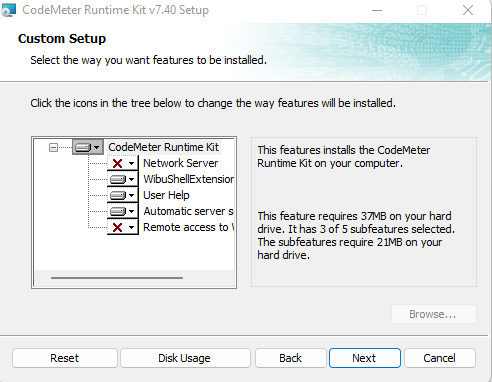
- For a local installation on a single PC, choose the default setup as shown in the screenshot above.
- For more complex installations, please contact ARDIS® support.
- Click next.
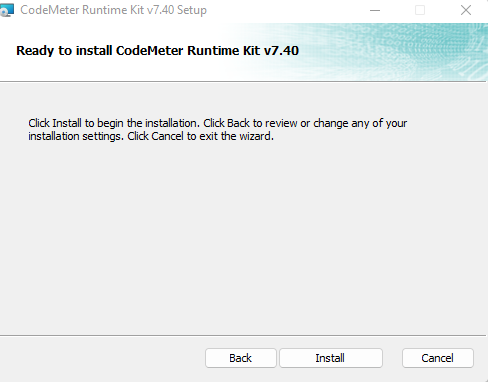
- After installation, you will get a success message.
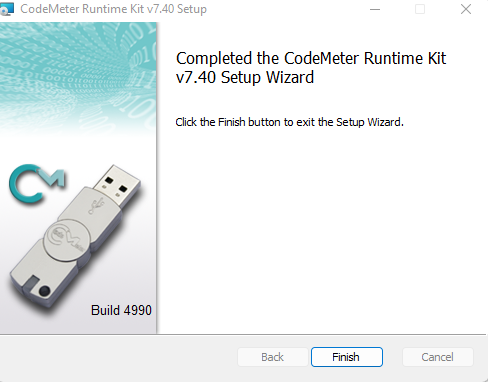
Click finish.
STEP 3: Install license key
- Click the link you have received from ARDIS® to install the WIBU license key.
- The ARDIS® license activation center will open in your internet browser.
- Select the correct key type:
- Digital key: default option; a digital key can be installed on local pc's, production machines or physical servers.
- Cloud key: only if explicitly agreed upon with ARDIS®; a cloud key can be installed on cloud environments (Azure, AWS, GCP ...) or virtual machines (Hyper-V, VMWare ...). Beware that you first need to import a cloud container into the CodeMeter Control Center (detailed instructions can be found here).
- USB-key (dongle): only if explicitly agreed upon with ARDIS®; the dongle should be physically connected to the local computer, production machine or physical server.
- Confirm installation of the key by clicking 'activate licenses'.

STEP 4: Install the latest version of OPTIMIZER
- Please visit the download page on our website and get the latest official release.
- Please make sure you save a backup of the installer file in a safe environment (strongly advised in case you do not have a enhancement plan, our yearly maintenance contract).
- Run the installer (.msi-file) and follow the instructions in the wizard.
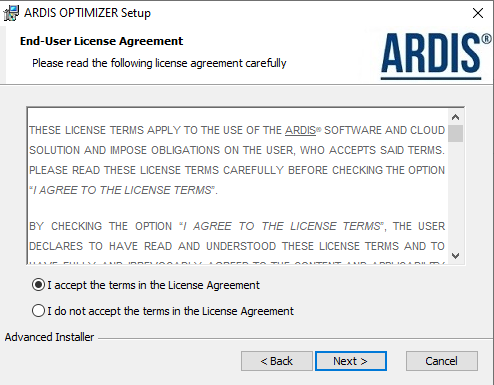
Accept license terms.
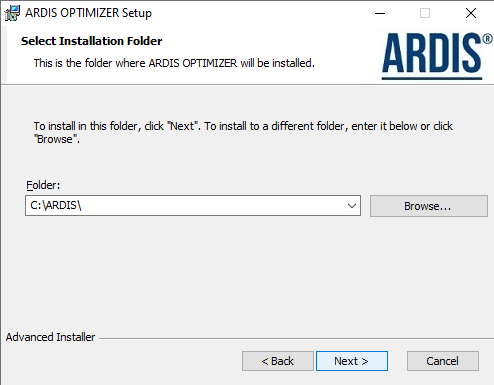
Choose target location.

Confirm install.
STEP 5: Install some prerequisites
- Download and install Microsoft C++ 2017 Redistributable Package (x86).
- Download and install .NET (minimum 4.6.2).
STEP 6: Download license file
- Download your ALX-file from the email you got from ARDIS®.
- Save it in your local ARDIS® folder (usually C:\Ardis).
STEP 7: Start OPTIMIZER for the first time
- Start OPTIMIZER from your desktop.
- Select your language.
- Select your license file (ALX).
STEP 8: Point OPTIMIZER to the correct license key and/or license file
Optional step. Should you have changed the location of the key and/or license file, please follow the instructions below.

Click the 'About'-icon

Click the key symbol (1) in order to point OPTIMIZER to the correct license key.

Select WIBU Codemeter and indicate whether the license key is on this computer or on another.
STEP 9: Getting started
- Connect with our online help in order to learn the basics.
- First make sure that you have activated the online help in your preferences and that you have registered some user info (Tools > Options).
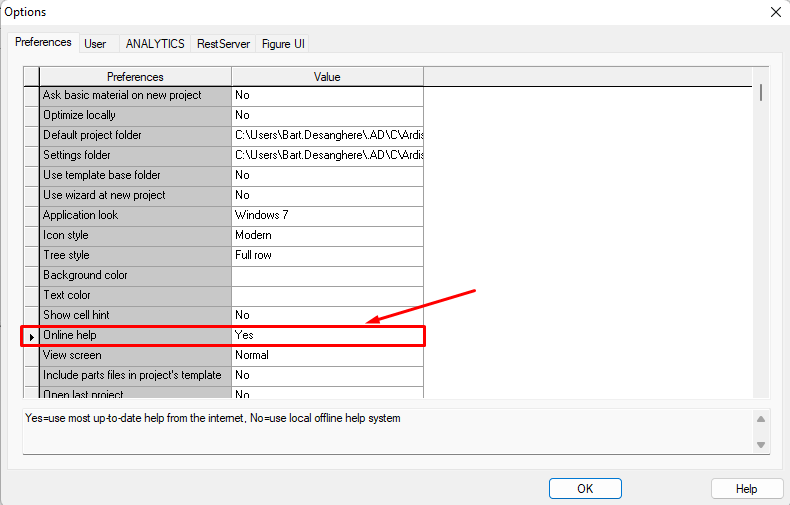
Activate online help
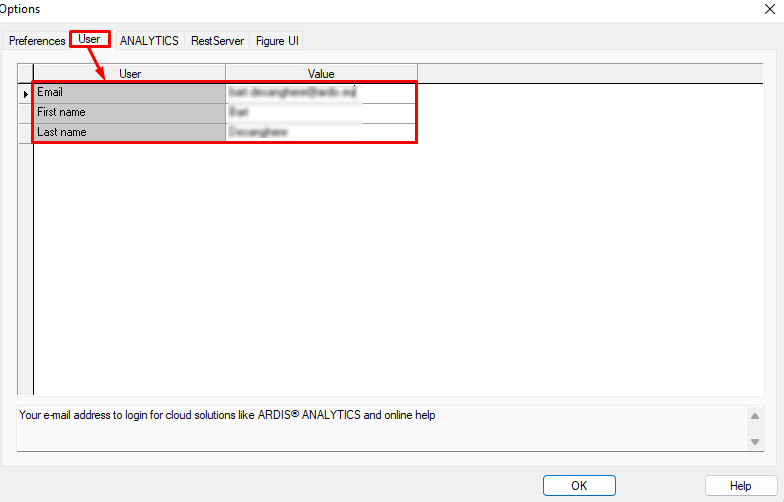
Register user info
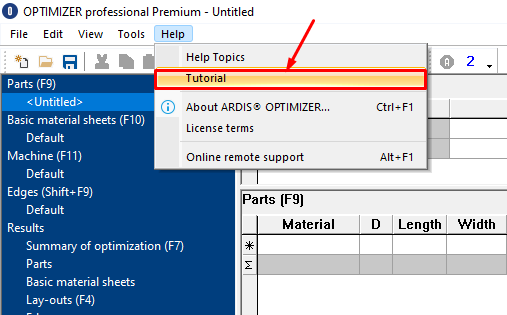
Access online tutorial
STEP 10: Contact us
If you should encounter any problems or are in need of extra support, please contact us.